Best Free VPN for Smart TV LG / Samsung
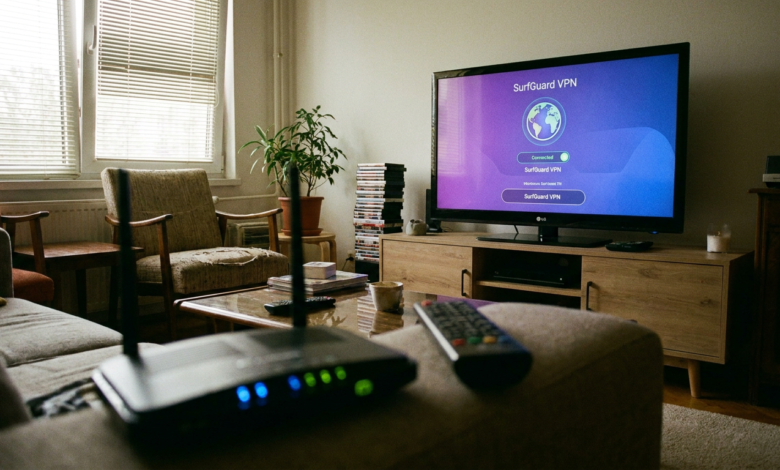
Family movie night, everyone’s settled on the couch, and I go to load up a show that was working fine last week. Suddenly it’s “not available in your region.” My Samsung TV picked that exact moment to remind me why I’d been meaning to sort out a VPN for it for months.
The problem is, most smart TVs—mine included—don’t have a native VPN app option sitting in the app store like your phone does. So I went looking for a free solution, tested a bunch of half-baked workarounds, and ended up learning way more about how smart TVs handle VPNs than I ever wanted to know.
Here’s everything that actually worked and everything that wasted my evening.
Why This Isn’t as Simple as “Just Download a VPN App”
Both LG (WebOS) and Samsung (Tizen) smart TVs run pretty locked-down operating systems. Unlike Android TV boxes, they don’t have an open app store where you can just search “VPN” and install whatever pops up. There are a small handful of exceptions, but for the most part, direct VPN apps aren’t available for either platform.
I found this out the hard way after searching my Samsung’s app store for probably ten different VPN names and finding nothing.
So if a free VPN “app” claims to install directly on your LG or Samsung TV from the built-in store, be skeptical. In my experience, that’s not how most of these actually work.
The Real Ways to Get a VPN Working on Your Smart TV

After going through this myself, there are basically three realistic methods. I tried all three.
Method 1: Setting Up a VPN on Your Router
This ended up being the method I stuck with long-term. Instead of putting the VPN on the TV itself, you install it directly on your home router. Every device connected to that router—including your smart TV—automatically routes through the VPN.
I used a router that supported VPN client configuration (mine already had this built in, but some people flash routers with DD-WRT or similar firmware to unlock the feature). Once set up, my Samsung TV didn’t need any special app at all. It just connected to WiFi like normal, completely unaware it was going through a VPN.
Downside: router-based VPN setup isn’t exactly beginner-friendly if your router doesn’t natively support it, and free VPN services rarely offer router-level configuration. Most free VPNs I tested don’t provide the login credentials or server details needed for manual router setup — that’s usually locked behind paid plans.
Method 2: Sharing a VPN Connection From Your Laptop
This one felt like a hacky workaround, and honestly, it kind of is, but it worked in a pinch. You connect your laptop to a VPN, then share that VPN connection over WiFi or ethernet, essentially turning your laptop into a mini VPN router.
On Windows, this involves creating a mobile hotspot from your VPN-connected laptop, then connecting your smart TV to that hotspot instead of your regular WiFi.
I tried this with a laptop running Windscribe’s free plan, and it did work — but the video quality took a noticeable hit, presumably because my laptop’s WiFi card wasn’t built for handling heavy streaming traffic on top of a VPN tunnel. Fine for a quick fix, not something I’d want running every night.
Method 3: Using a Streaming Device With Built-In VPN Support
This ended up being the easiest and most reliable option for me. Instead of trying to force a VPN onto the TV’s limited operating system, I plugged in a separate device — I used an Amazon Fire TV Stick — and installed a VPN app directly on that instead.
Since the Fire Stick runs a version of Android, it has an actual app store with real VPN apps available, several of which offer free tiers.
Step-by-Step: What I Actually Did (Fire Stick Method)

This ended up being my go-to setup, so here’s the exact process.
Step 1: Plug a Fire TV Stick (or similar Android-based streaming device) into your TV’s HDMI port. This bypasses the TV’s own limited operating system entirely.
Step 2: Go to the app store on the Fire Stick and search for a VPN app. I tested a few free options here — ProtonVPN’s free tier and Windscribe’s free plan both had functioning apps available.
Step 3: Sign up for the free account and install the app. No credit card needed for either of the ones I mentioned, which was a relief after wasting time on ones that demanded payment info upfront just to try the “free” version.
Step 4: Connect to a server before opening your streaming app. Order matters here, same as I found with other VPN troubleshooting — connect the VPN first, then launch Netflix, YouTube, or whatever you’re using.
Step 5: Test playback and switch servers if something doesn’t load properly. Free VPN servers tend to get overloaded since so many people are using a limited number of them. I had to swap servers two or three times before landing on one that streamed smoothly.
What I Learned About Free VPNs Specifically
Free plans are genuinely usable for casual stuff, but I ran into some consistent limitations worth knowing upfront.
Data caps are real. Windscribe’s free plan, for example, caps monthly data pretty low. Binge-watching a full season will burn through that fast.
Server options are limited. Free tiers usually only unlock a handful of server locations compared to paid plans, so if you need a specific country, you might be out of luck.
Speeds can be inconsistent. During peak hours, I noticed buffering that didn’t happen when I tested the same server at 2am. Free servers get crowded.
Some streaming platforms actively block known VPN server IPs, and free VPNs get blacklisted faster since so many people are funneling through the same limited server pool.
None of this means free VPNs are useless for smart TVs — I still use one regularly — just that expectations need to be realistic.
Mistakes I Made Along the Way
Mistake #1 — Assuming my TV could run a VPN app directly. Wasted a solid twenty minutes searching my Samsung’s app store before realizing this wasn’t how it worked for my model.
Mistake #2 — Not checking if my router actually supported VPN configuration before trying that method. Some routers need a firmware flash to unlock this feature, which isn’t something I was prepared to mess with on my main home router.
Mistake #3 — Trying to use my phone’s mobile hotspot instead of a laptop’s shared VPN connection. This didn’t work well at all for me — the connection was noticeably weaker and streaming was basically unwatchable.
Mistake #4 — Not double-checking data caps before a weekend binge session. Hit my free data limit halfway through a show once and had to switch to a completely different VPN provider mid-weekend.
Which Method Would I Actually Recommend?
For anyone who just wants something simple without messing with router settings, grabbing a cheap streaming stick and installing a free VPN app on that is genuinely the easiest path. It’s what I use most often now, and setup took less than fifteen minutes total.
If you’re more comfortable with tech and want the VPN to cover every device in your house automatically, the router method is more work upfront but way more convenient long-term.
Final Thoughts
Getting a VPN working properly on a Samsung or LG smart TV isn’t as straightforward as it is on a phone or laptop, mainly because these TVs just weren’t built with that flexibility in mind. Once I understood that the trick isn’t forcing a VPN onto the TV itself but working around it—through a router, a shared connection, or a separate streaming device — the whole thing clicked into place pretty quickly.
If you’re dealing with the same regional restrictions I was, grabbing an affordable streaming stick and pairing it with a free VPN plan is honestly the least frustrating way to go. Just keep an eye on those data caps if you’re planning a serious binge session.